
Order Notifications
Tell a customer what is happening to their order, automatically. Each moment is its own toggle with its own template.
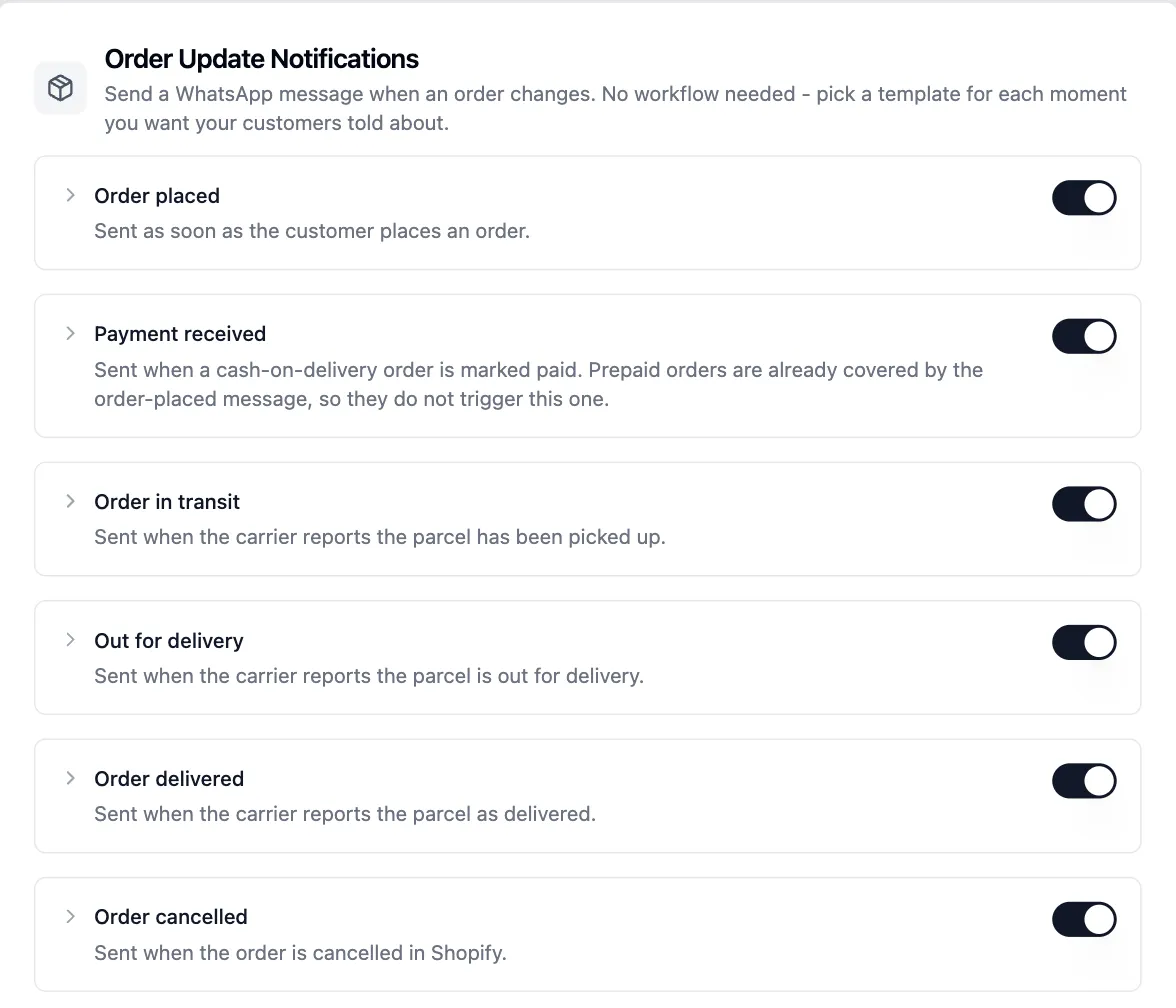
The moments you can send on
Section titled “The moments you can send on”| Notification | Fires when |
|---|---|
| Order placed | The customer places the order |
| Payment received | A cash-on-delivery order is marked paid |
| Order in transit | The carrier reports the parcel picked up |
| Out for delivery | The carrier reports it out for delivery |
| Order delivered | The carrier reports it delivered |
| Order cancelled | The order is cancelled in Shopify |
| Refund issued | The order is refunded, in full or in part |
| Delivery attempt failed | The carrier tried to deliver and could not |
Delivery attempt failed has its own card, below the others. It is the only update that needs the customer to do something — answer their phone, confirm an address, arrange a redelivery — and left unanswered it is how a delivery turns into a return.
Set one up
Section titled “Set one up”-
Turn it on
Section titled “Turn it on”Click the row to expand it, then flip the switch. Turning a notification on opens it and closes whichever was open — an expanded card is tall, and two of them bury the Save button.
-
Pick a template
Section titled “Pick a template”Only your approved WhatsApp templates appear. Selecting one shows a live preview of exactly what the customer will receive.
-
Fill in the blanks
Section titled “Fill in the blanks”If the template has
{{1}},{{2}}and so on, a picker appears for each. Choose what fills it.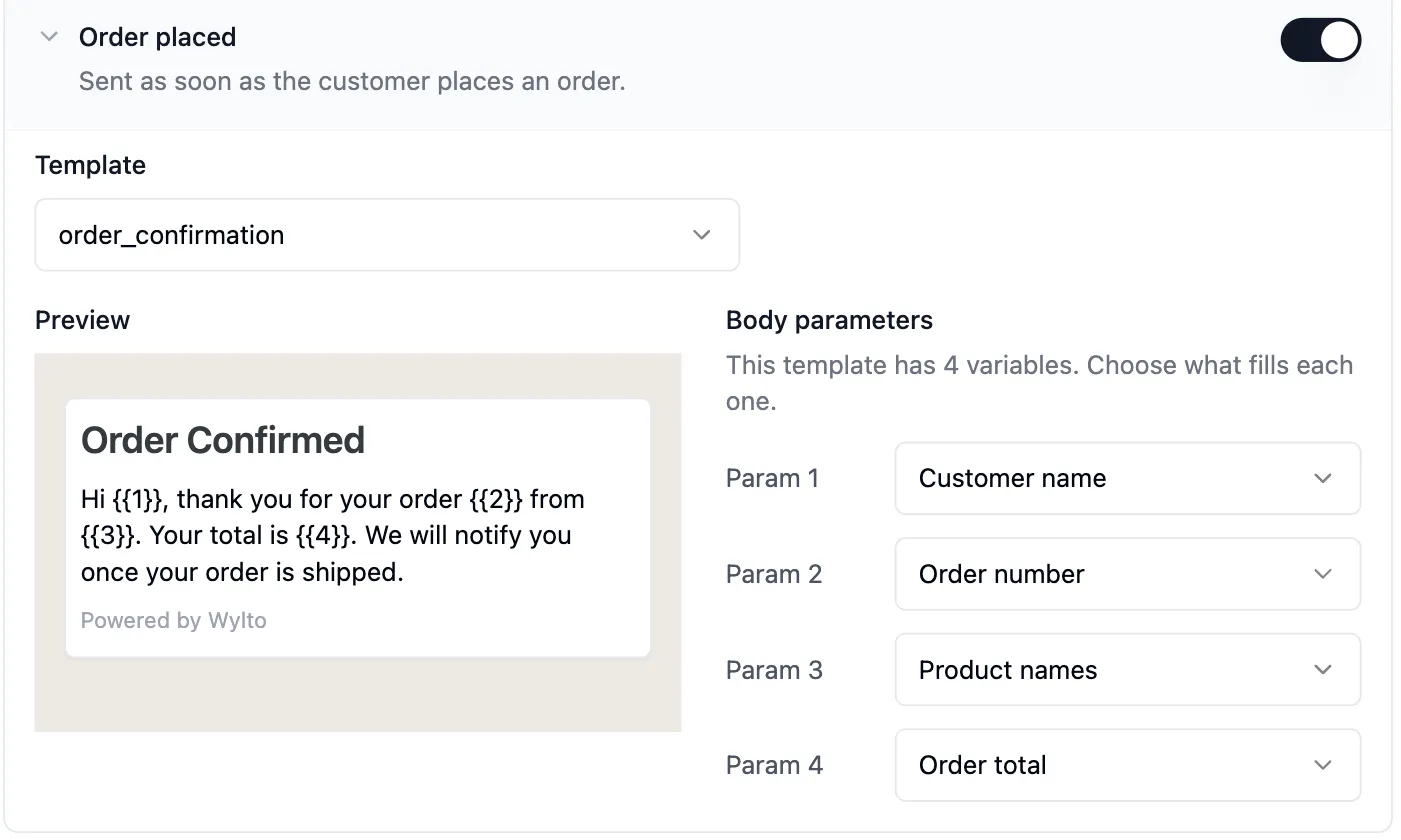
-
Each card has its own Save button, and it only lights up when that card has unsaved changes.
What you can put in a message
Section titled “What you can put in a message”| Field | What it is |
|---|---|
| Customer name | The customer’s name on the order |
| Order number | The order number the customer sees, e.g. 1024 |
| Order status | The status this message is about |
| Order total | The order total |
| Product names | The items on the order |
| Shipping address | The delivery address |
| Customer email | Their email |
| Customer phone | Their phone number |
| Order status link | A link to Shopify’s order status page |
| Tracking link | The carrier tracking link, when there is one |
Headers and buttons
Section titled “Headers and buttons”- Text header with a variable — pick a field, same as a body parameter.
- Image, video or document header — give a URL. The template only stores a sample, so every message needs a real one.
- Link button — if your template has a button whose URL ends in
{{1}}, pick what fills it. Only the path only fields can be used, because WhatsApp appends your value to the link registered on the template rather than replacing it.
Good to know
Section titled “Good to know”- One message per order, per status. Shopify sends several
orders/updatedwebhooks per change and carriers re-report the same status for days. Wylto sends each status once per order. - Opted-out customers are skipped. Anyone who opted out of marketing does not receive these.
- Multi-parcel orders report the first parcel. An order split across several shipments reports the status of the first one.
- Existing workflows still run. If you already have an order-status workflow, it keeps working. A store with both configured sends both messages — so turn one off if you do not want two.
Related
Section titled “Related”- Shopify Setup
- WhatsApp Metrics — how many of these went out, and how far each got