
Customers as Contacts
Every Shopify order has a customer you may want to message again: a new launch, a festive sale, a loyalty offer. Create contacts in Wylto saves that customer as a Wylto contact when the order comes in, so your buyers become a list you can send a broadcast to.
Turn it on
Section titled “Turn it on”- Open Shopify in Wylto and scroll to Order & contact settings.
- Turn on Create contacts in Wylto.
- Pick a Contact source, so you can tell Shopify buyers apart from other leads.
- Add Contact tags for every buyer, and tag rules for buyers who match, like a high order total or a product.
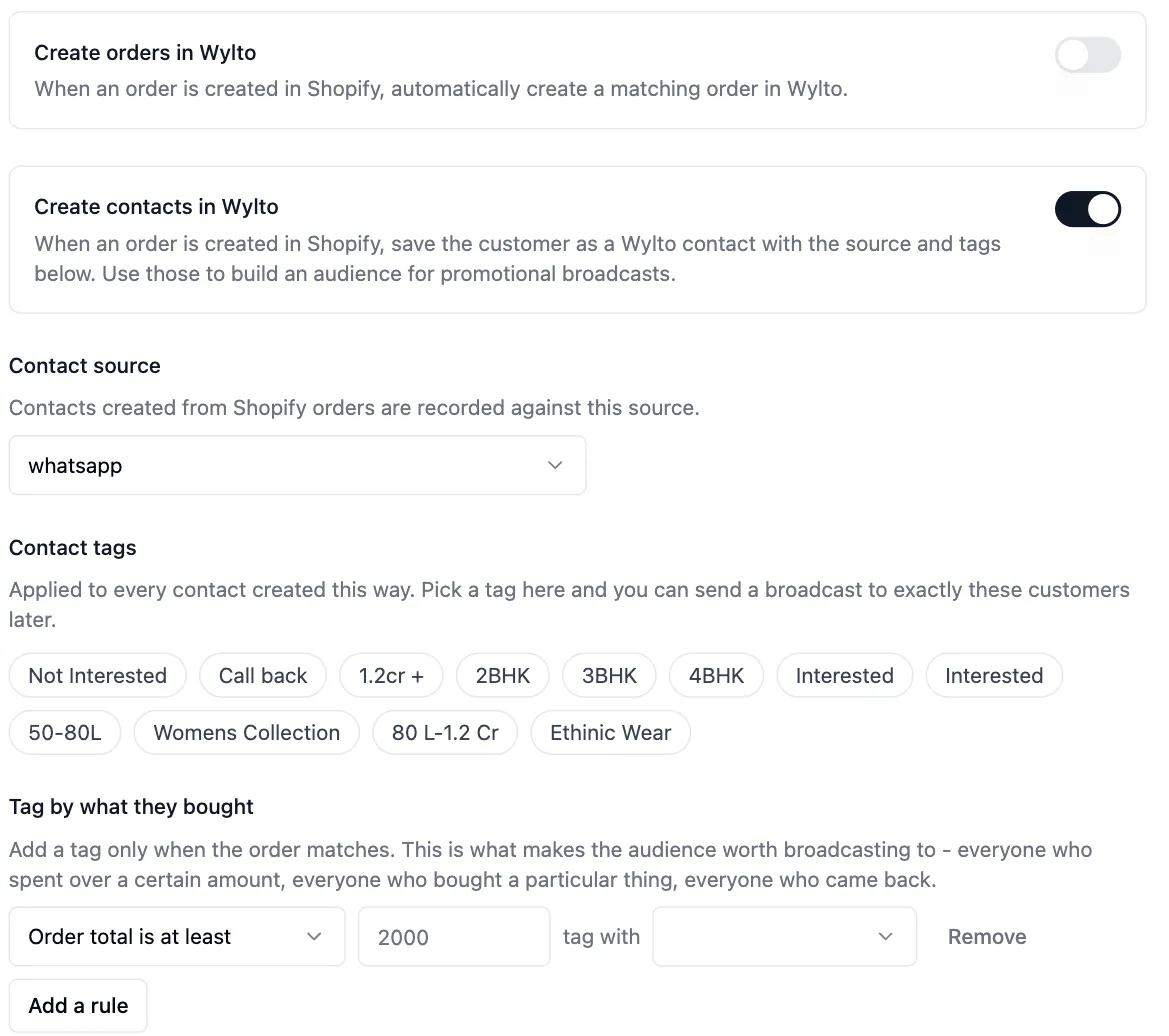
Tag rules are explained on Shopify Setup.
What the contact gets
Section titled “What the contact gets”| Field | Where it comes from |
|---|---|
| Name | The customer’s first and last name on the order |
| Phone | The order’s phone. If empty, the customer’s phone. If empty, the billing address phone |
| The order’s email, or the customer’s email | |
| Source | The Contact source you picked. Only set when the contact is new |
| Tags | Your Contact tags, plus any tag rule the order matches |
One customer, one contact
Section titled “One customer, one contact”Wylto looks for the customer before it creates anyone:
- Same phone number? That contact is used.
- Same email? That contact is used. If it has no phone yet, the order’s phone is added to it.
- Neither? A new contact is made with the name, phone and email together.
So a customer who orders five times is still one contact, and a customer who chatted with you on WhatsApp first is not saved twice. Their name and source stay as they were. Only the phone (when missing) and tags are added.
Things to know
Section titled “Things to know”Broadcast to your buyers
Section titled “Broadcast to your buyers”Once contacts are coming in, open Broadcast and pick the audience by tag, like everyone tagged High Value. This is why the tags matter: they are how you find these buyers again. Promotional messages need a Marketing template.
Related
Section titled “Related”- Shopify Setup — connect your store and set up tag rules
- Contacts — view, edit and filter your contacts
- Order Notifications — message customers about their order